
Dolphin Anty is an antidetect browser designed for multiaccounting. It lets you create separate browser profiles with unique digital fingerprints, proxy settings, and cookies, so you can manage any number of accounts across different platforms without constantly switching between them.
In this review, we'll look at how Dolphin Anty handles digital fingerprints, how to set up SP5Proxies, and what other tools it offers for profile management, team collaboration, and automation.
Digital Fingerprint Spoofing
The core principle behind an antidetect browser is creating separate profiles with unique digital fingerprints. A fingerprint is a set of browser and device characteristics that websites use to identify users.
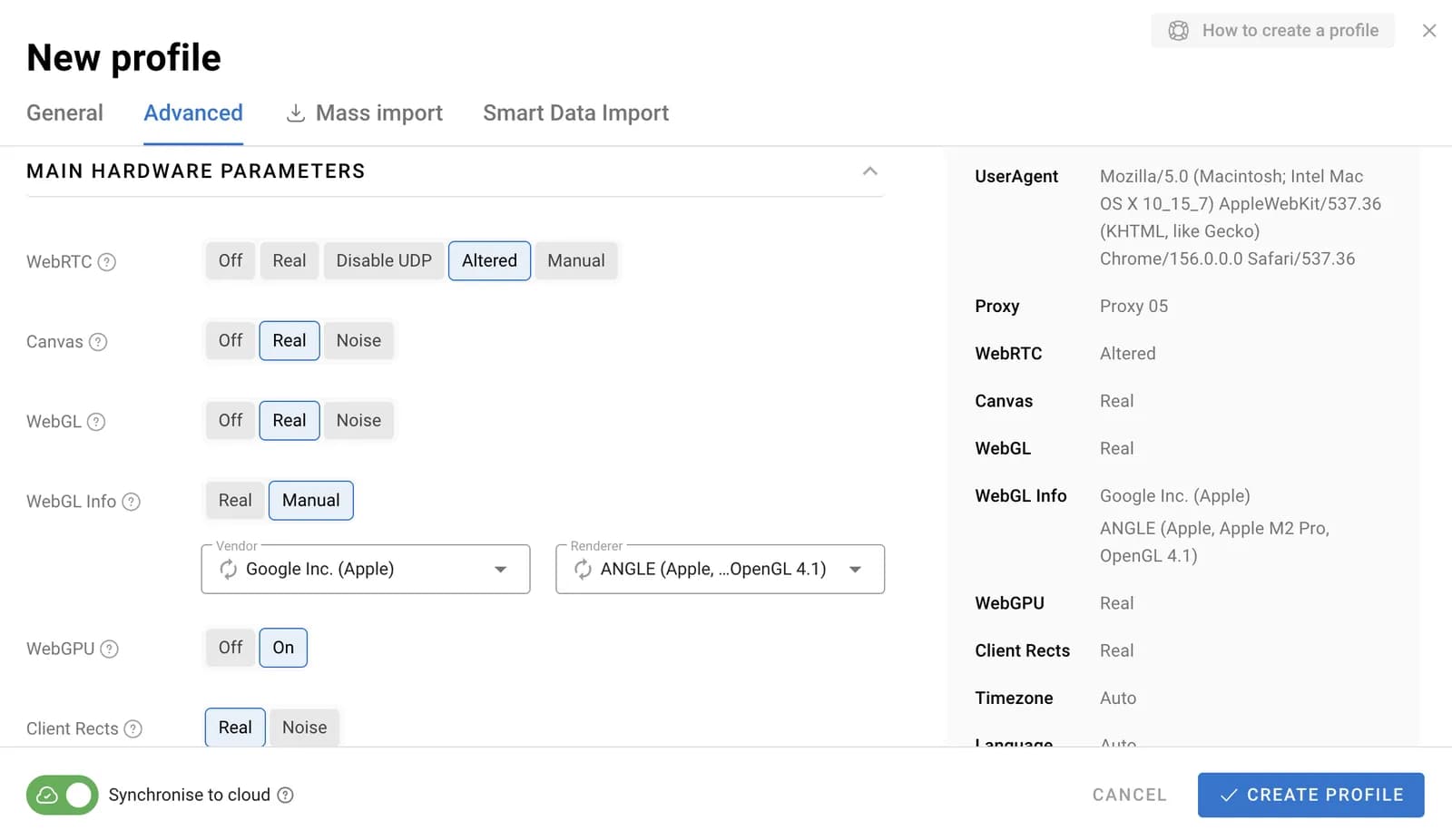
A digital fingerprint includes parameters such as:
- Operating system and User-Agent;
- WebRTC, Canvas, and WebGL;
- Client Rects;
- Time zone, language, and geolocation;
- CPU and RAM specifications;
- Screen resolution and media devices;
- Fonts and network ports.
Dolphin Anty supports spoofing more than 20 parameters. When you create a profile, its digital fingerprint is generated automatically based on real device configurations. You can keep the default settings or manually change individual parameters.
However, it's important to consider how these parameters relate to one another. For example, the selected operating system should match the graphics card specifications, CPU architecture, and other hardware details. If you select macOS but leave hardware settings typical of a Windows PC, the resulting fingerprint will be inconsistent. Dolphin Anty will warn you about this.
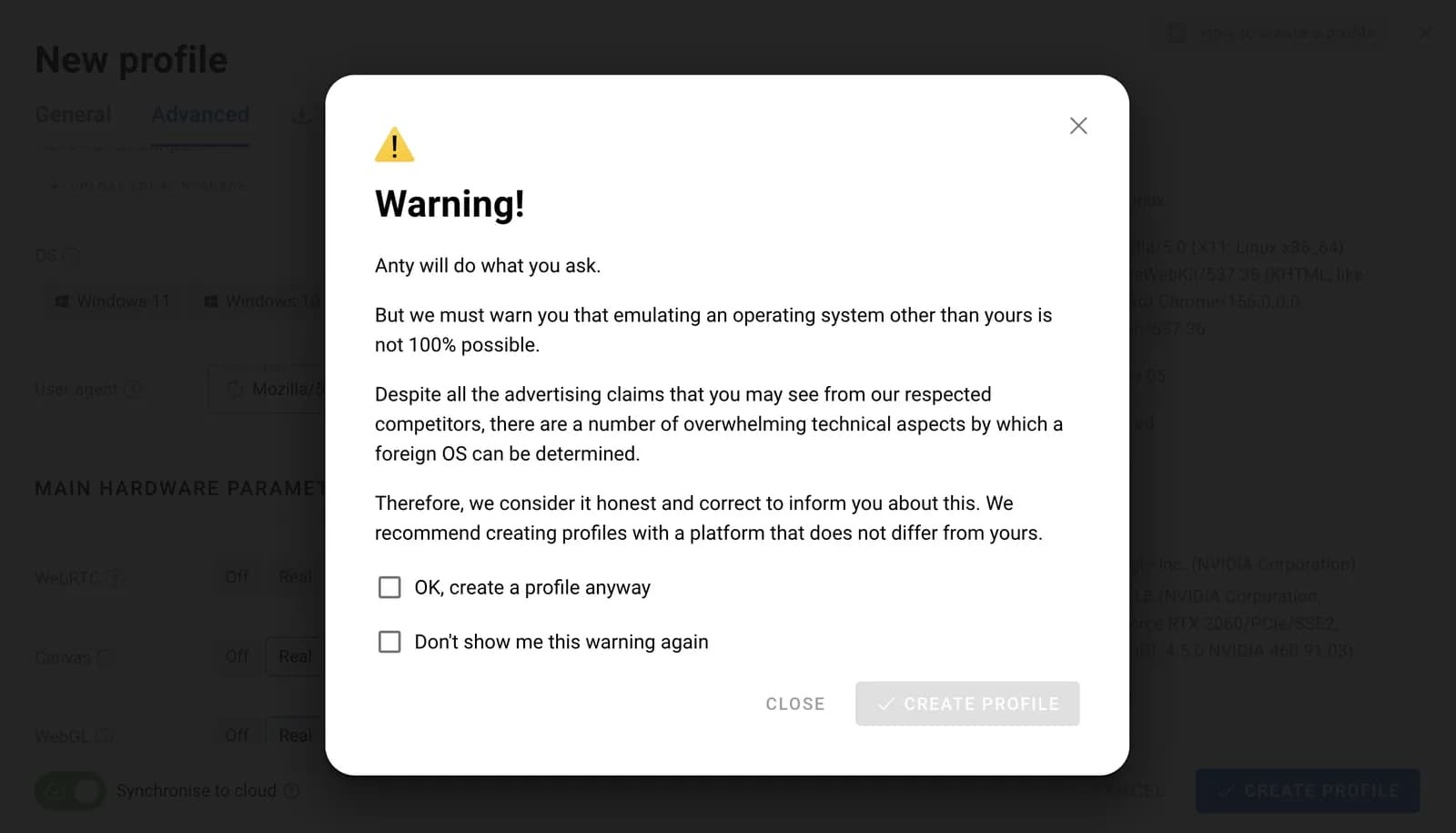
That's why you shouldn't change parameters manually unless necessary. Automatically generated configurations are suitable for most tasks, while custom settings are useful when you understand how different device characteristics relate to each other.
Network parameters also require attention. An IP address is not a browser or device characteristic in itself, but, together with geolocation, time zone, and other data, it forms part of a user's digital profile. That's why your profile and proxy settings should be consistent.
Setting Up SP5Proxies
Proxies are an important part of a digital fingerprint, so it's best to buy them from reliable providers that offer stable connections. SP5Proxies offers mobile and residential proxies. Supported protocols and authentication methods depend on the plan: HTTP and SOCKS5 connections are available, while some mobile plans support username-and-password or IP authentication.
Dolphin Anty lets you add a proxy directly when creating a profile or save it in a separate section first and assign it to one or more profiles later.
Adding a Proxy When Creating a Profile
- Open Dolphin Anty and click the button to create a profile.
- Find the proxy section in the profile settings and select New Proxy.
- Choose the protocol and enter the connection details from your SP5Proxies dashboard.
- Test the connection and save the profile.
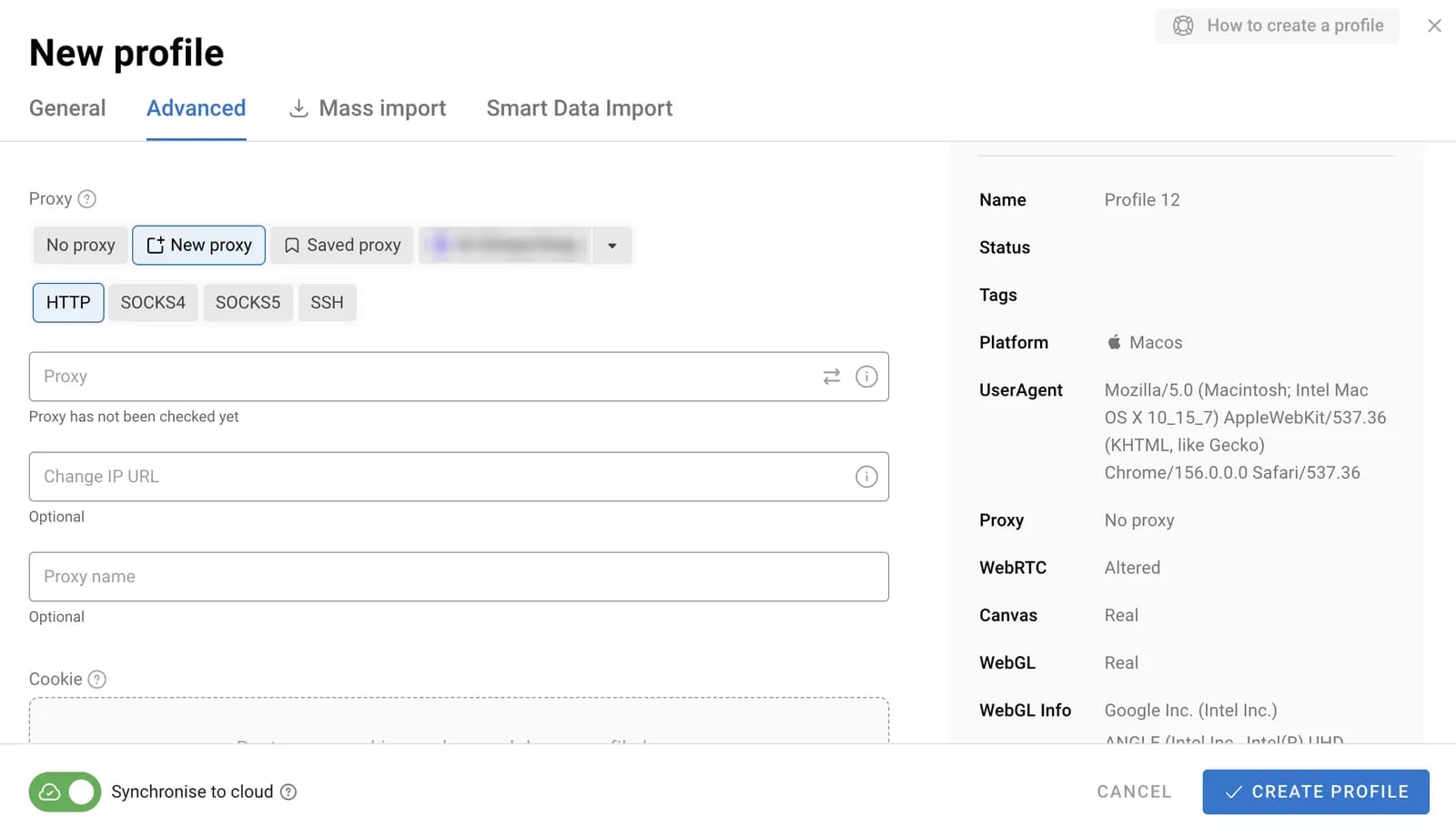
The proxy is assigned to the profile as soon as you save it.
Adding and Assigning a Saved Proxy
- Open the Proxies section in the Dolphin Anty sidebar.
- Click the button to add a proxy and enter the details provided by your proxy provider.
- Test the connection and save the proxy.
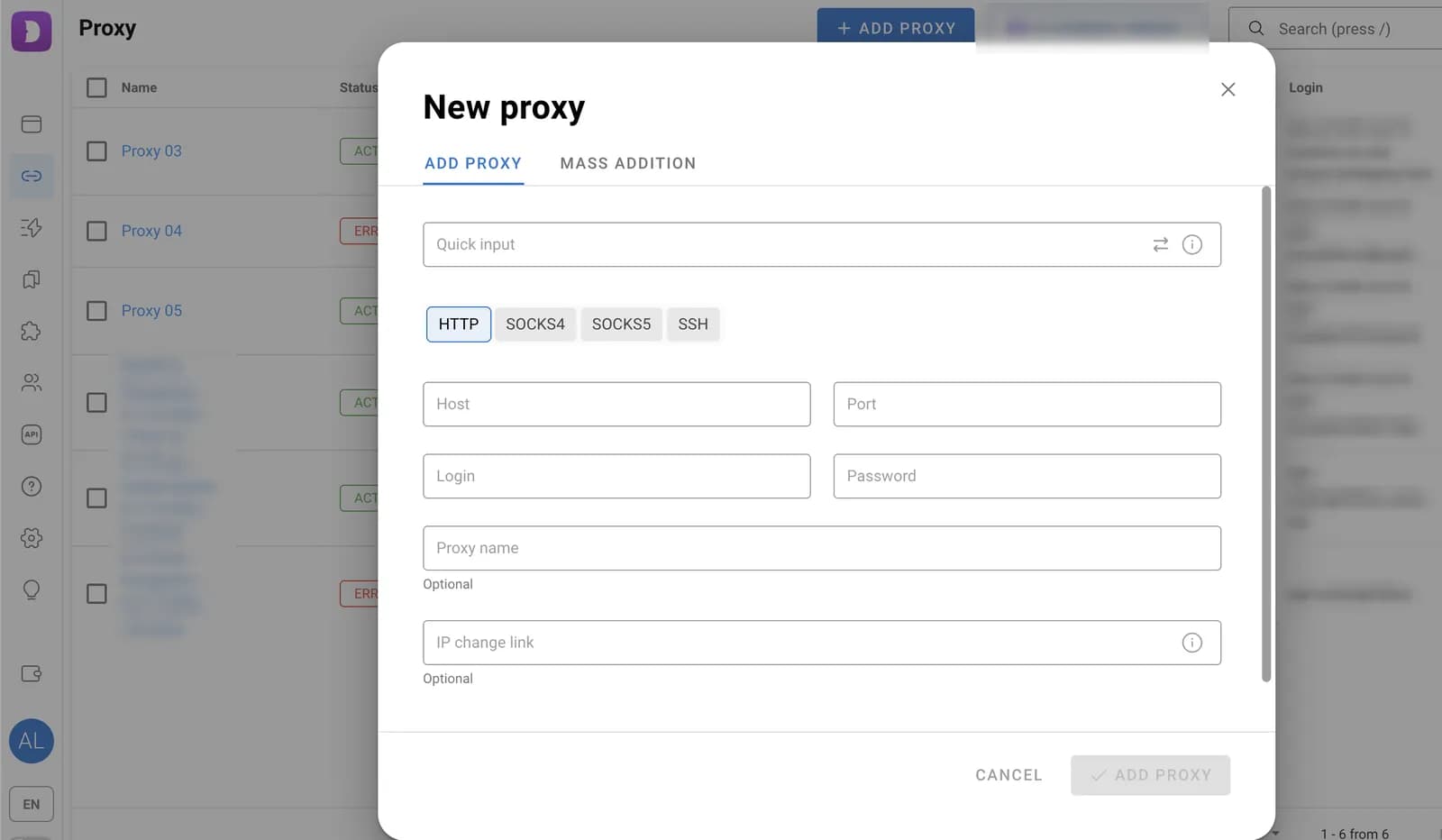
If you need to add multiple proxies, you can use the Bulk Add feature to upload them as a list.
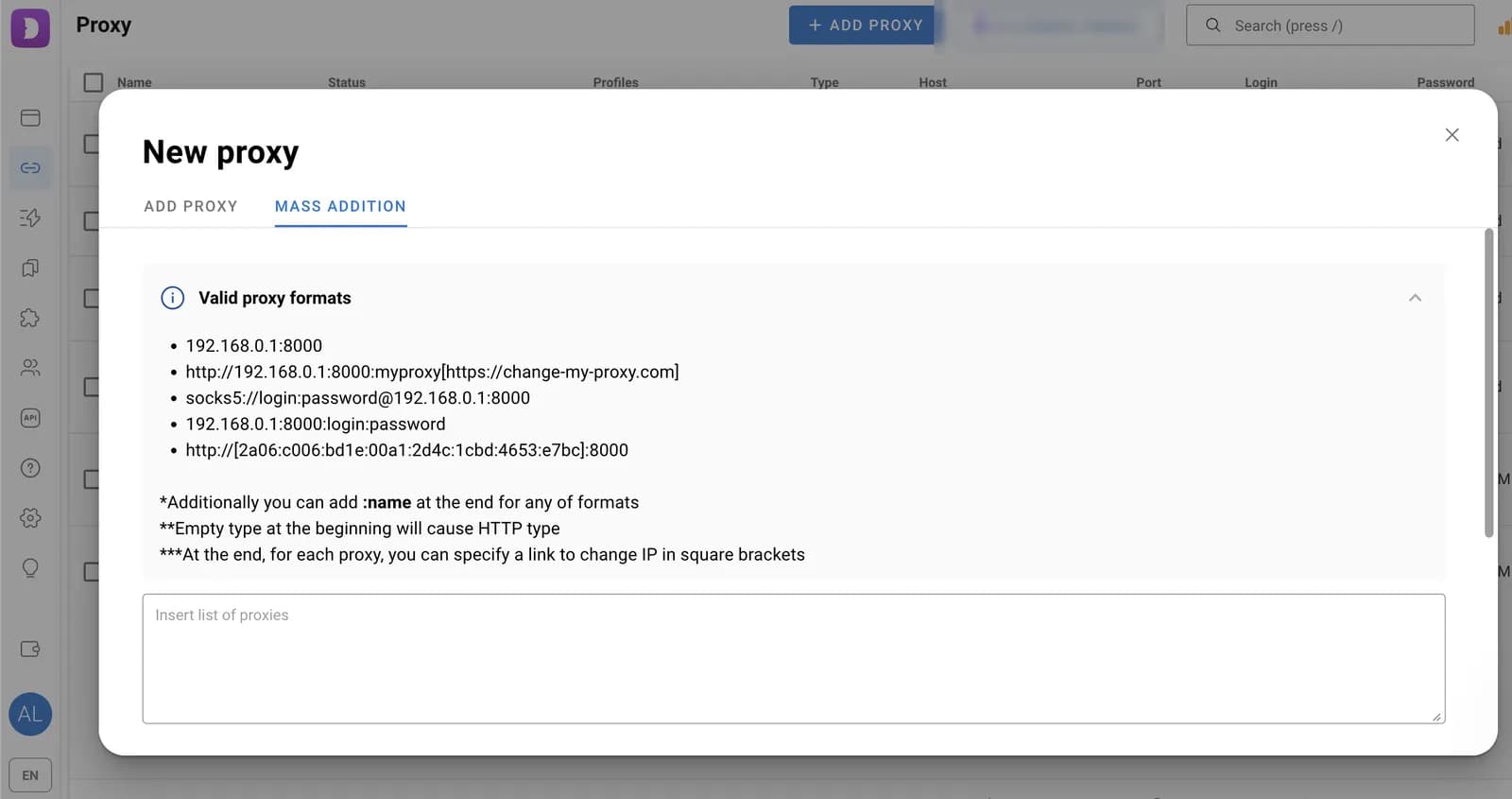
Once saved, proxies can be assigned to profiles during profile creation by selecting Saved Proxy.
To assign proxies to several existing profiles at once, select the profiles in the list, open the bulk actions panel, and choose Change Proxy. Then select the proxies and the assignment method: manual or random. You can also assign them sequentially or use one proxy for every specified number of profiles.
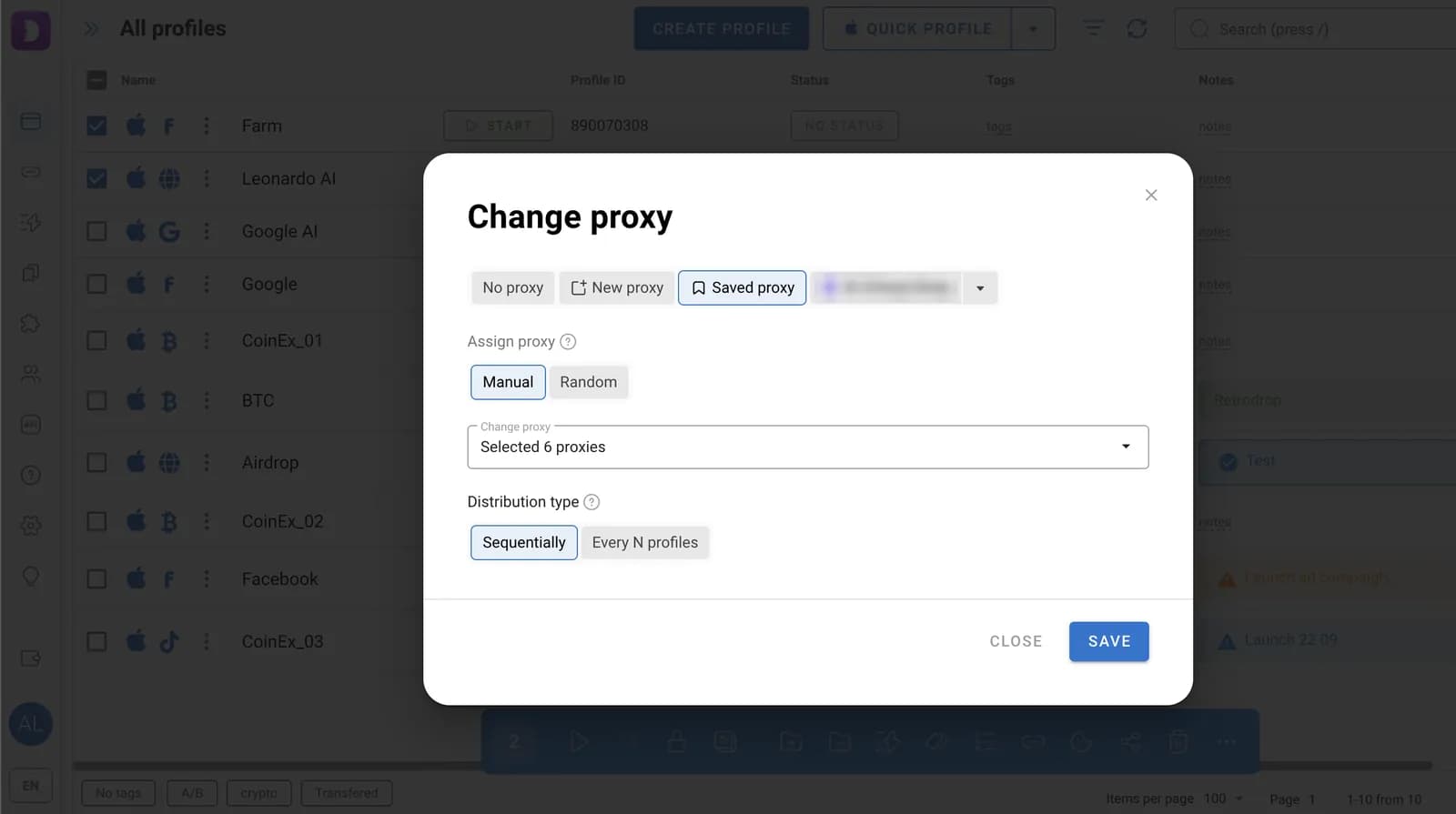
This makes it easy to distribute proxies across profiles without entering the connection details manually for each one.
Before getting started, test the connection and make sure the proxy's geolocation matches the profile settings. This helps prevent inconsistencies between network and browser parameters.
What Else Does Dolphin Anty Offer?
Digital fingerprint spoofing and proxy management are the main tools for multiaccounting. But Dolphin Anty also includes other features that make it easier to work with large numbers of profiles.
Profile Management
Dolphin Anty offers several tools for organizing browser profiles:
- Folders let you sort profiles by project, team, or other categories.
- Tags help group accounts based on specific criteria.
- Statuses let you track profile states and work progress.
- Notes store additional information about profiles.
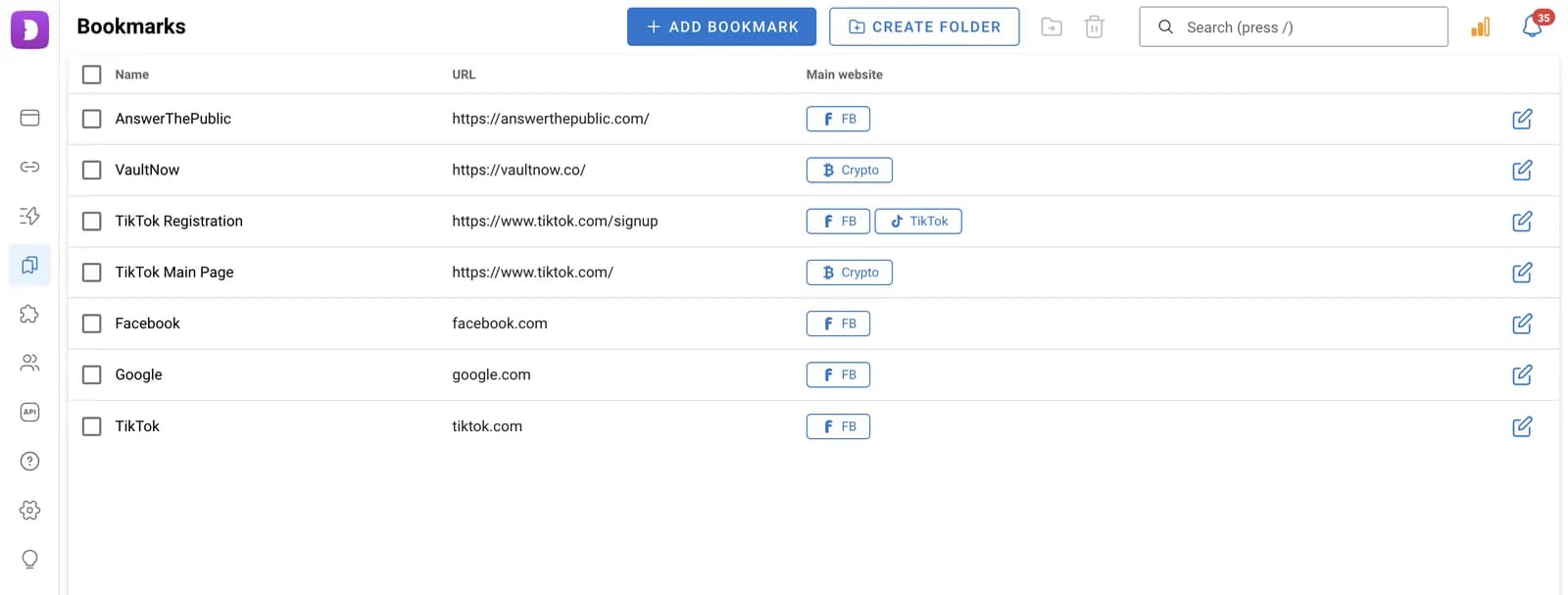
- Profile types let you select Facebook, Google, TikTok, or Crypto categories depending on the platform the account is intended for.
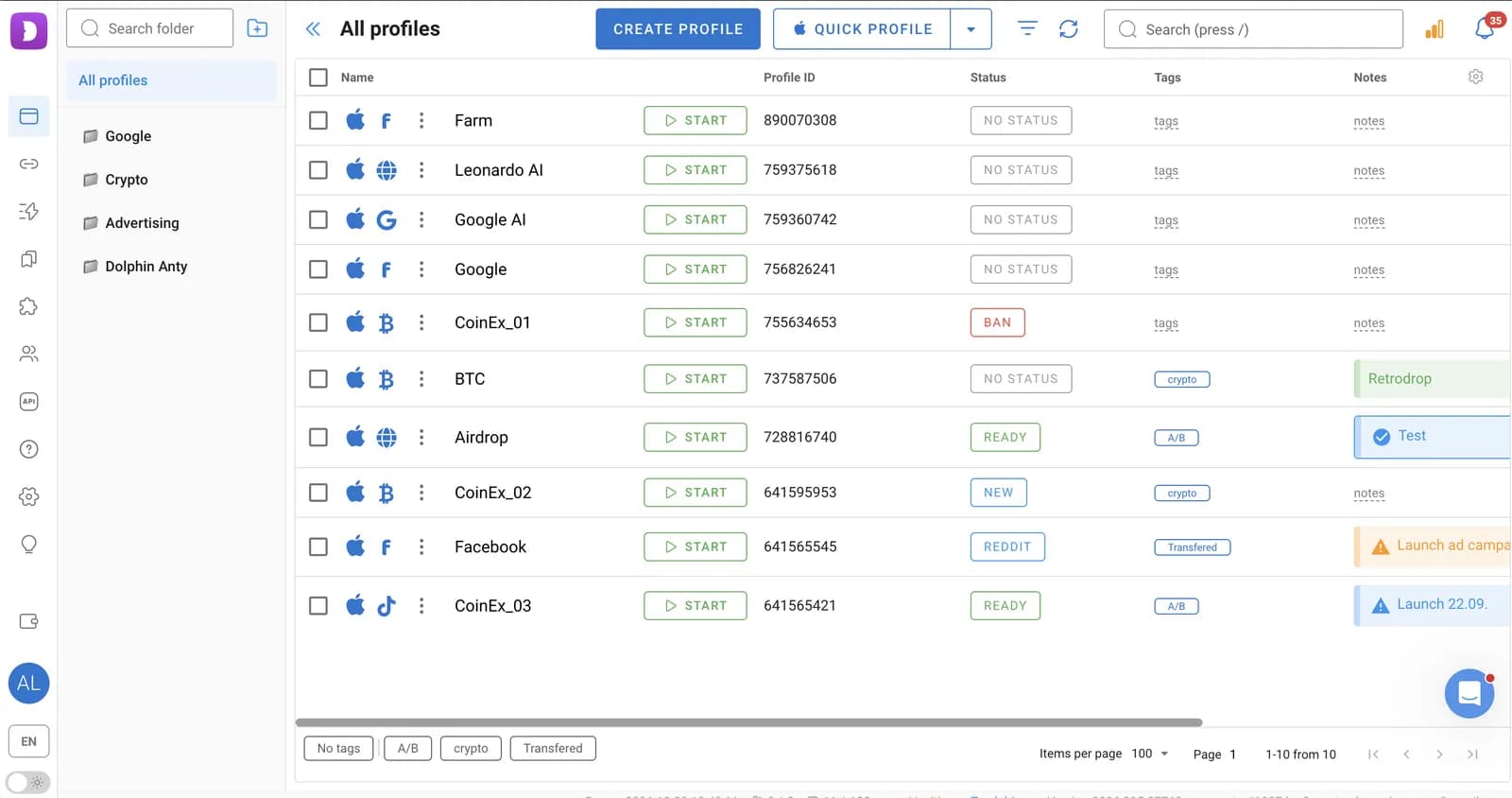
A profile type doesn't change the digital fingerprint or compatibility settings for a particular website. Instead, it automatically adds useful bookmarks for working on the selected platform.
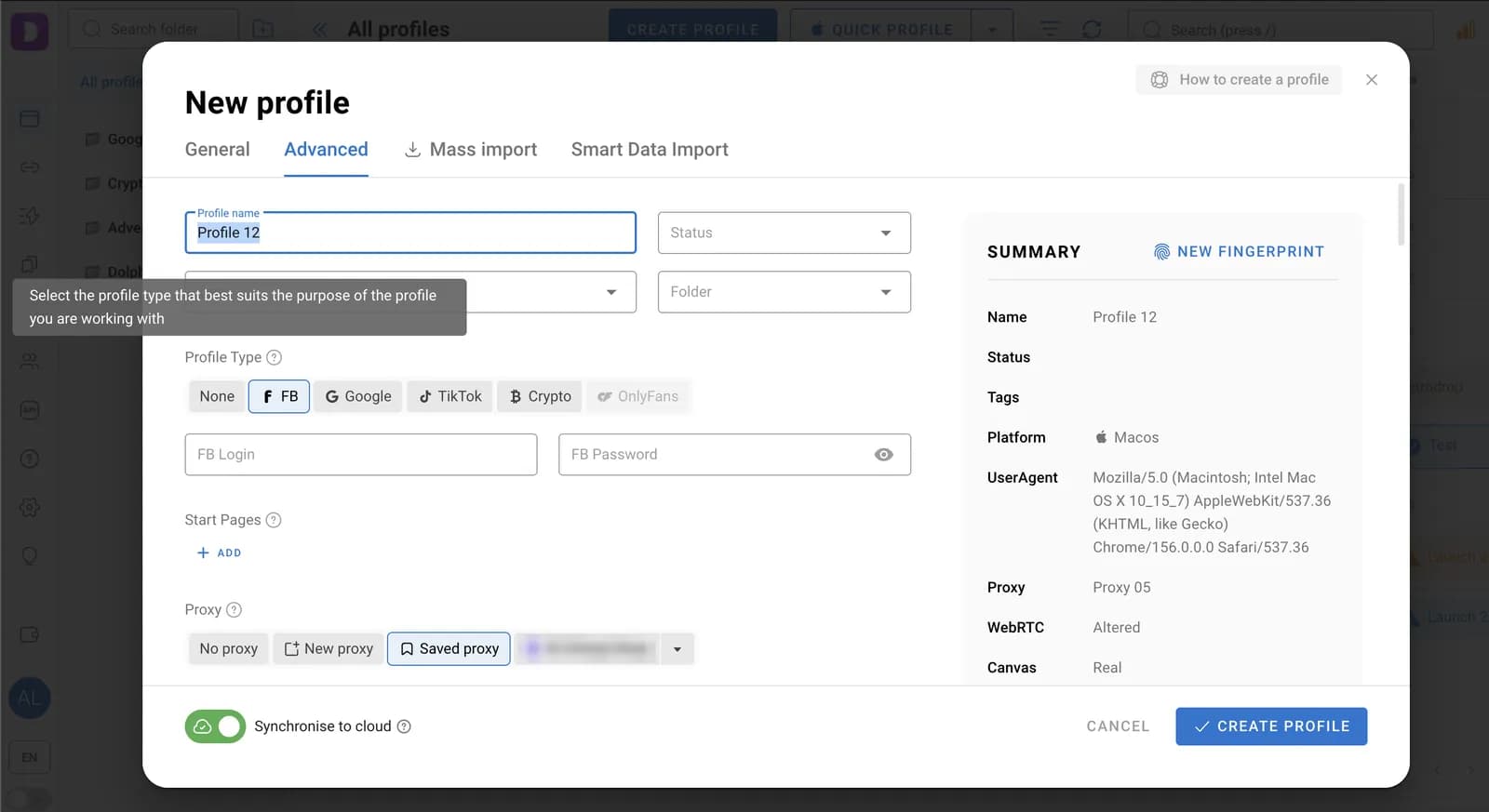
To save time, Dolphin Anty supports bulk assignment of bookmarks, extensions, and start pages. For example, you can add the same set of bookmarks to all profiles of a particular type. Extensions can be installed using a Chrome Web Store link or by uploading an archive.
Team Collaboration
Dolphin Anty offers three roles for team collaboration:
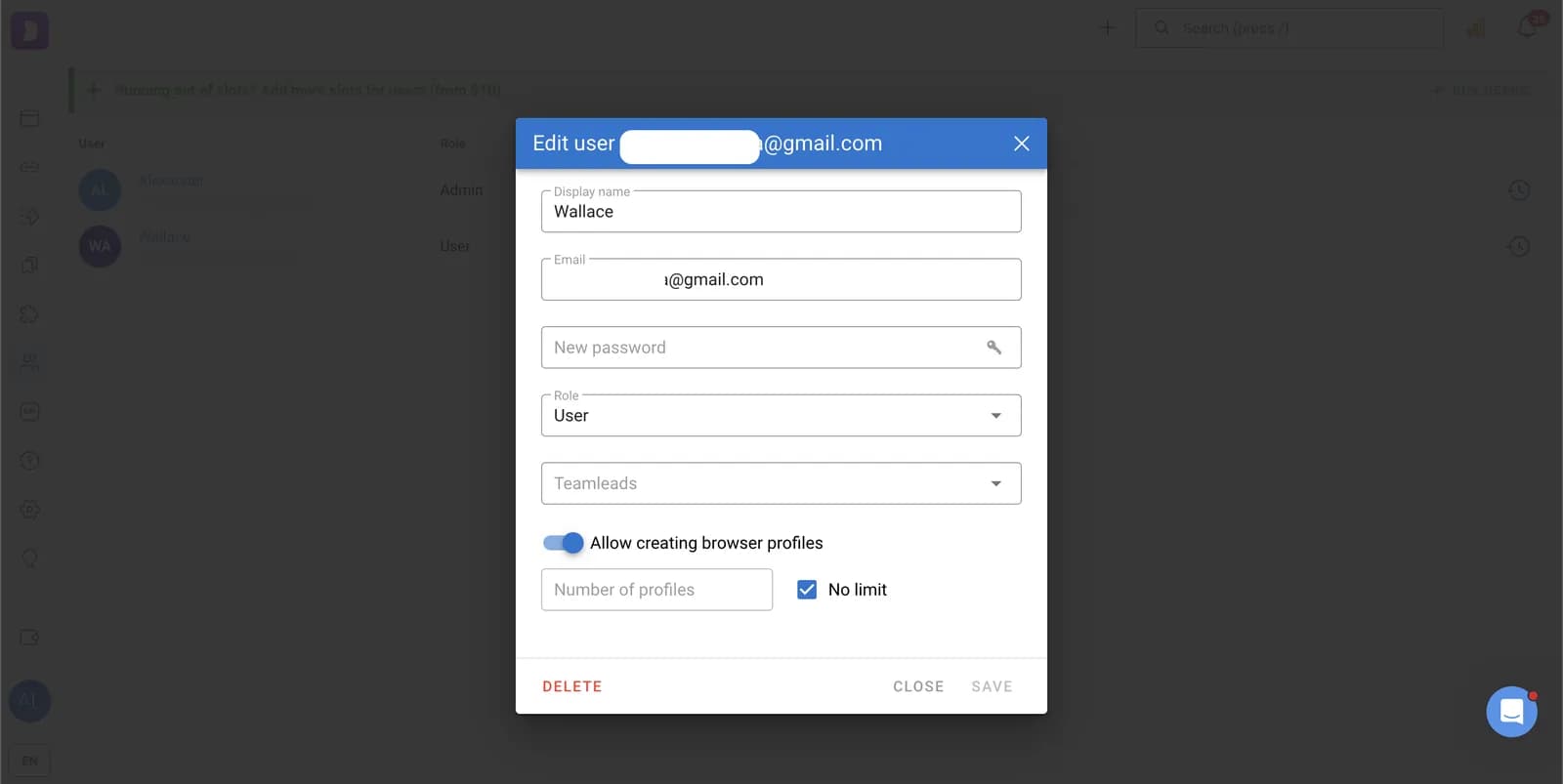
- Admin – an administrator with full access. Admins manage users, assign roles, configure access permissions, and can view and edit other team members' profiles.
- Teamlead – a team manager who oversees assigned users. Teamleads can view, launch, and edit their profiles, but cannot create users or change their roles and passwords.
- User – a regular team member. Users work with their own profiles, manage proxies, and can access colleagues' profiles according to their assigned permissions.
Dolphin Anty also lets you limit the number of profiles an individual team member can create.
The browser also includes tools for sharing data. Team members can share browser profiles, folders, proxies, and scenarios. When sharing a profile, you can configure permissions — for example, allow a team member to launch it but prevent them from editing or deleting it.
Automation
Dolphin Anty includes several automation tools.
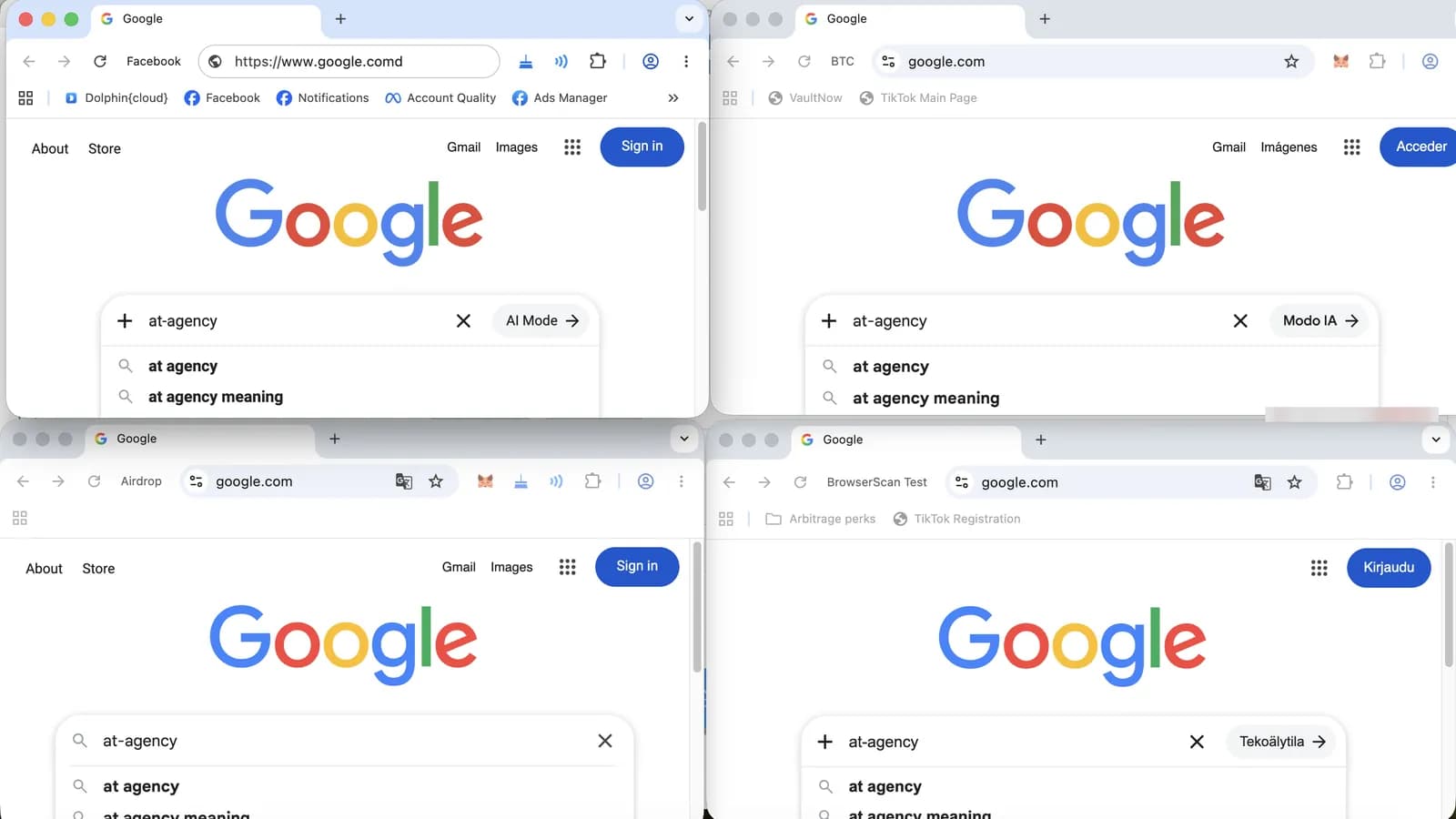
Synchronizer lets you control multiple browser profiles simultaneously. Select the profiles you need and designate one as the main profile. Actions performed in that profile are replicated across all the other selected profiles.
Cookie Robot automates visits to a predefined list of websites to collect cookies. Enter the URLs, and the browser will open the pages one by one in the selected profile.
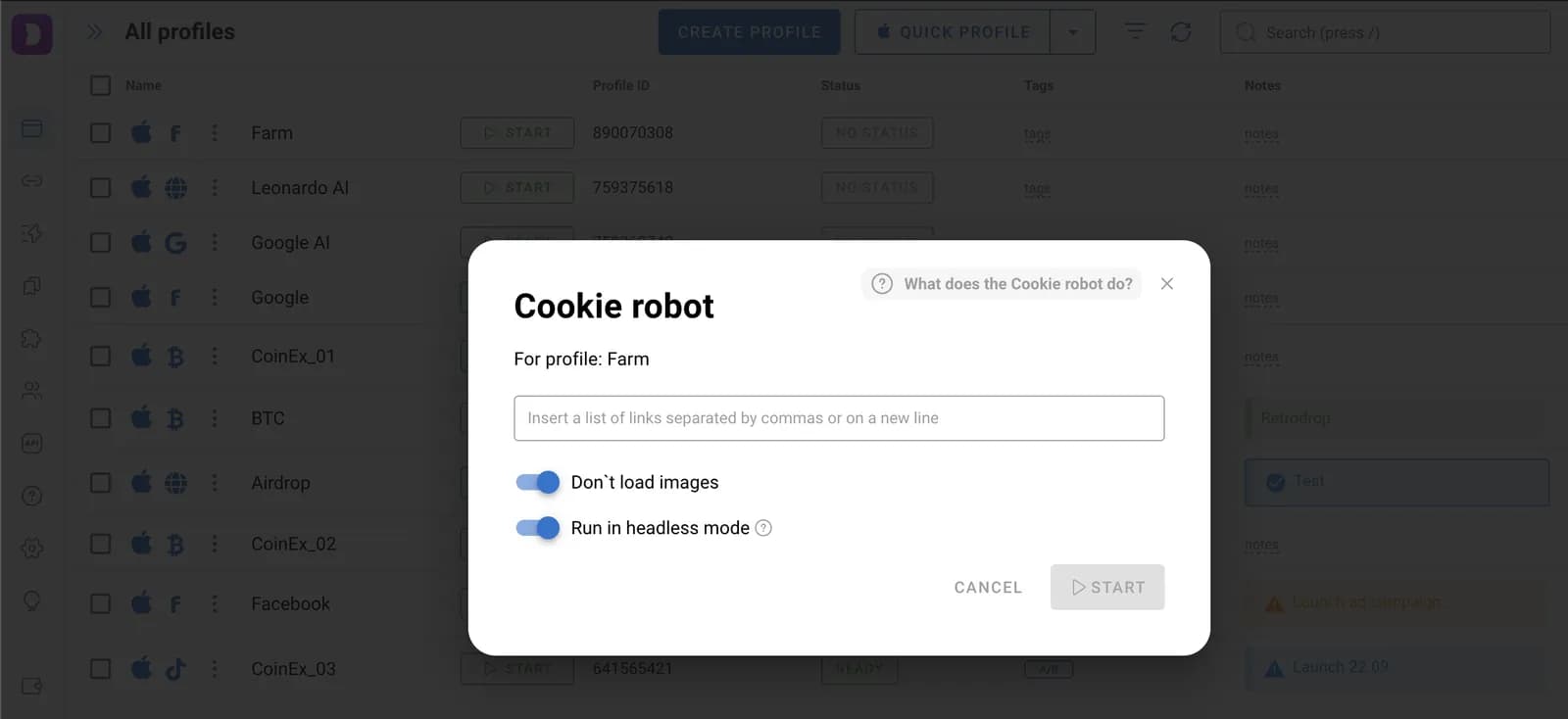
Additional settings are available:
- Don't load images – disables image loading to reduce proxy traffic consumption.
- Run in Headless Mode – runs the robot in the background.
Scenario Builder lets you create sequences of actions using individual blocks that can be connected in the required order.
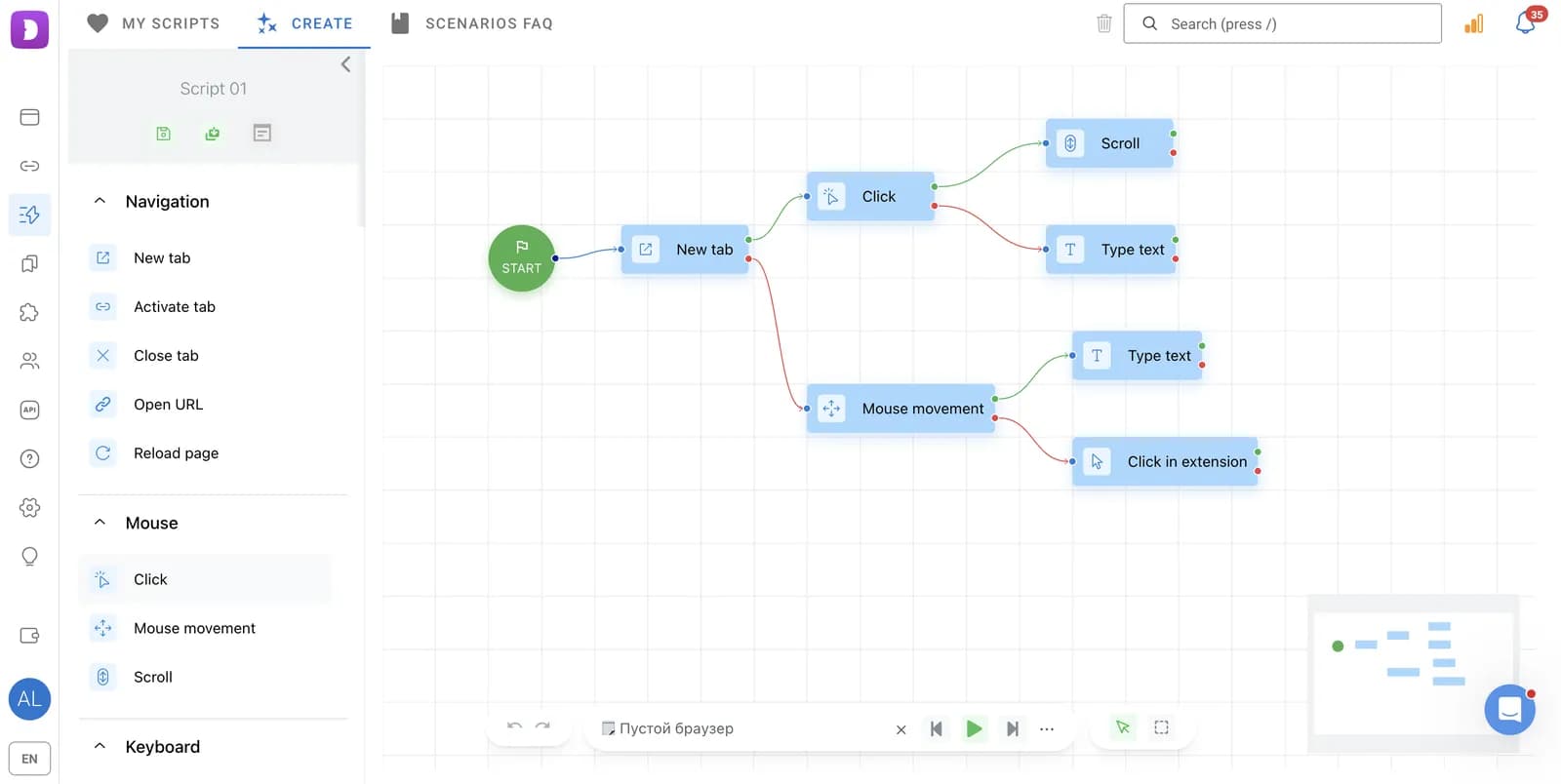
Scenarios can include opening URLs, switching tabs, clicking buttons, scrolling pages, entering text, retrieving information from websites, and working with files.
Once created, a scenario can be run in a single profile or across several selected profiles.
Pricing
Dolphin Anty offers five plans for individual professionals and teams. They differ in the number of available profiles, team collaboration features, and the cost of additional users.
| Plan | Monthly price | Number of profiles | Users and team collaboration | Best for |
|---|---|---|---|---|
| Free | $0 | Up to 3 | 1 user, no team collaboration | Trying out Dolphin Anty |
| Starter | From $10 | 20–60 | 1 user, no team collaboration | Professionals who need more profiles and automation tools |
| Base | $89 | Up to 100 | Team collaboration; additional users cost $10 per user/month | Small teams |
| Team | $159 | Up to 300 | Team collaboration; additional users cost $20 per user/month | Larger projects |
| Enterprise | From $299 | 1,000–50,000 | Team collaboration; additional users cost $25 per user/month | Large-scale projects with many profiles |
SP5Proxies users get a discount: use promo code SP5PROXIES to get 20% off your first payment.
Conclusion
Dolphin Anty brings together the tools needed for multiaccounting in one application: profile creation and management, digital fingerprint configuration, proxy integration, team collaboration, and automation of repetitive tasks.